If you’re running a real estate agency or building websites for property clients, managing leads manually is a bottleneck you can’t afford. Spreadsheets get messy, emails get lost, and follow-ups slip through the cracks. What you need is a real estate CRM — built directly into your WordPress site.
The good news: Houzez includes a fully integrated CRM system through its dedicated plugin. No third-party SaaS tool. No monthly fee. Just a powerful lead management dashboard that works out of the box once you install and activate it.
In this guide, you’ll learn exactly how to install the Houzez CRM plugin, navigate its dashboard, and use every section — from Leads and Inquiries to Deals and Insights — to manage your real estate pipeline like a pro.
This guide is for agencies, freelancers, and property portal owners who use the Houzez WordPress theme and want to manage leads without adding external CRM tools.
What Is the Houzez CRM — and What Does It Actually Include?
The Houzez CRM is a dedicated plugin (called “Houzez CRM”) that adds a full lead management system to your WordPress site. Once activated, it creates a separate front-end dashboard — accessible to admins and agents — with its own URL and interface, completely separate from the standard WordPress admin panel.
The CRM dashboard is organized into three sections:
- Overview: Dashboard (summary stats), Activities (real-time feed), Insights (listing analytics)
- CRM: Deals, Leads, Inquiries — the three core lead management modules
- Properties: A front-end property manager where agents can view, create and manage listings
This is the kind of functionality you’d normally pay $50–$150/month for with tools like HubSpot or Follow Up Boss. With Houzez, it’s included with a one-time $79 license — as long as you install the Houzez CRM plugin.
Step 1 — Install and Activate the Houzez CRM Plugin
The CRM does not come pre-activated. You need to install the “Houzez CRM” plugin from the Houzez plugin manager. Here’s how:
- Log in to your WordPress admin panel
- Go to Houzez → Plugins in the left sidebar
- Find the “Houzez CRM” card — it’s labeled RECOMMENDED
- Click Install
- Once installed, click Activate
Important: Make sure “Houzez Theme Functionality” and “Houzez Login Register” are already active before installing the CRM plugin — these are required dependencies.
After activation, the CRM dashboard becomes accessible from the front end of your site. Users with admin or agent roles can log in and see their personalized dashboard.
Step 2 — Understanding the CRM Dashboard
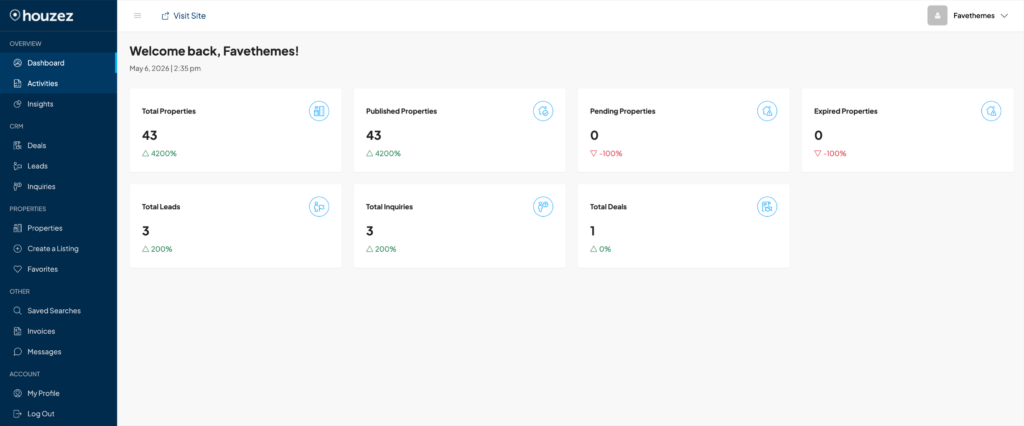
Once logged in to the front-end CRM, the first screen you see is the Dashboard. It gives you a live snapshot of your site’s performance with six key metrics:
| Metric | What It Shows |
| Total Properties | All properties in the system (published + pending + expired) |
| Published Properties | Live listings visible to visitors |
| Pending Properties | Listings awaiting approval |
| Expired Properties | Listings past their expiry date |
| Total Leads | All contacts who submitted an inquiry form |
| Total Inquiries | Buyer/renter search requests submitted through the site |
| Total Deals | Active deals created manually by agents |
Each metric also shows a percentage change compared to the previous period — so you can immediately see if your lead volume is trending up or down.
Step 3 — Monitor Leads in Real Time with Activities
The Activities section is your live feed. Every time a visitor submits a contact form on a property listing, a new entry appears here instantly — no need to check emails or WordPress notifications.
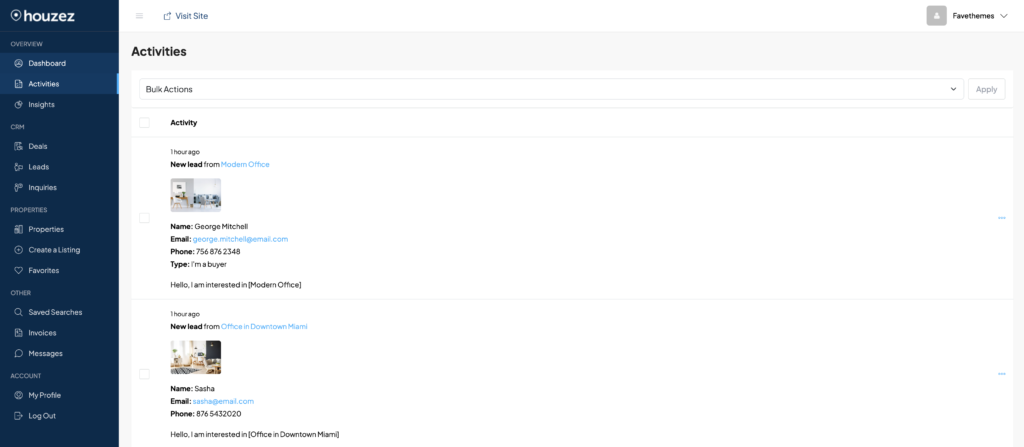
Each activity entry shows:
- The property that triggered the lead (with thumbnail and link)
- Contact name, email, and phone number
- Lead type (e.g. “I’m a buyer”)
- The message the visitor wrote
- Timestamp (“4 seconds ago”, “52 seconds ago”)
This real-time feed is especially useful during active listing campaigns, when you want to respond to inquiries within minutes. The faster your response time, the higher your conversion rate.
Pro tip: Bookmark the Activities page and check it first thing every morning. It’s the fastest way to see what happened overnight without digging through emails.
Step 4 — Manage Your Contacts in the Leads Section
The Leads section is where all your contacts are stored and managed. Every visitor who submits an inquiry form on your site automatically becomes a Lead — no manual import needed.
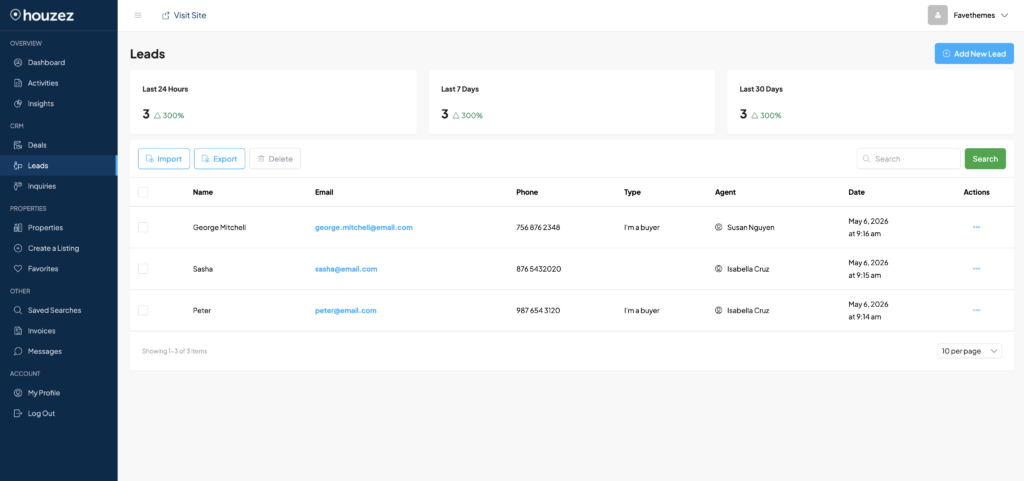
The Leads list view shows:
- Lead name and email (clickable)
- Phone number
- Type (buyer, seller, renter, etc.)
- Assigned agent
- Date and time of the inquiry
- Actions menu (Detail / Edit / Delete)
At the top of the page, you’ll see three counters showing lead volume for the last 24 hours, last 7 days, and last 30 days — each with a percentage change vs. the previous period.
To view full lead details:
- Go to CRM → Leads
- Click the three dots (…) next to any lead
- Select Detail
The Lead Details page shows all contact information plus four tabs: Inquiries (which properties they asked about), Listings Viewed (browsing history on your site), Saved Searches (what they’re looking for), and Notes (internal agent notes).
The Realtor section at the bottom shows which agent is assigned to this lead — including their name and contact email.
The “Listings Viewed” and “Saved Searches” tabs are gold for agents. They let you understand exactly what a lead is looking for before you call them — so you can tailor your pitch before picking up the phone.
Lead management actions available:
- Import leads from CSV (bulk upload for migrating from another CRM)
- Export leads to CSV (for reporting or backup)
- Edit lead details manually
- Delete a lead
- Add a new lead manually with the “Add New Lead” button
Step 5 — Use Inquiries to Understand What Buyers Are Looking For
Inquiries are different from Leads. While a Lead is a contact (a person), an Inquiry is a search request — the specific property criteria a buyer submitted through your site’s search or inquiry form.
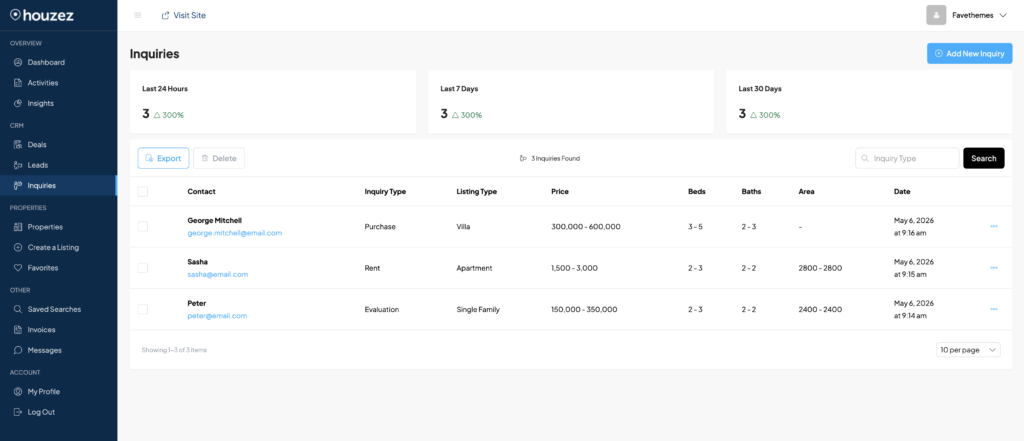
Each inquiry record includes:
- Contact name and email
- Inquiry type (Buy / Rent)
- Property type (Office, Villa, Shop, etc.)
- Price range
- Number of bedrooms and bathrooms
- Area size range
- Location (country, state, city, zip code)
On the right side of each inquiry, there’s a “Matching Listings” tab. This is a powerful feature: Houzez automatically checks your active listings against the buyer’s criteria and shows which properties could be a match. If no listings match yet, it shows “No data found” — which is itself useful, because it tells you there’s a gap in your inventory.
The Inquiries section is essentially a built-in buyer demand tracker. If you see 10 inquiries for 3-bedroom villas in a specific area but no matching listings, that’s a signal to go find more properties to list.
Step 6 — Track Your Pipeline with Deals
The Deals section is where you manage opportunities that have moved beyond the initial inquiry stage. Unlike Leads (which are created automatically), Deals are created manually by agents when a real conversation or negotiation is underway.
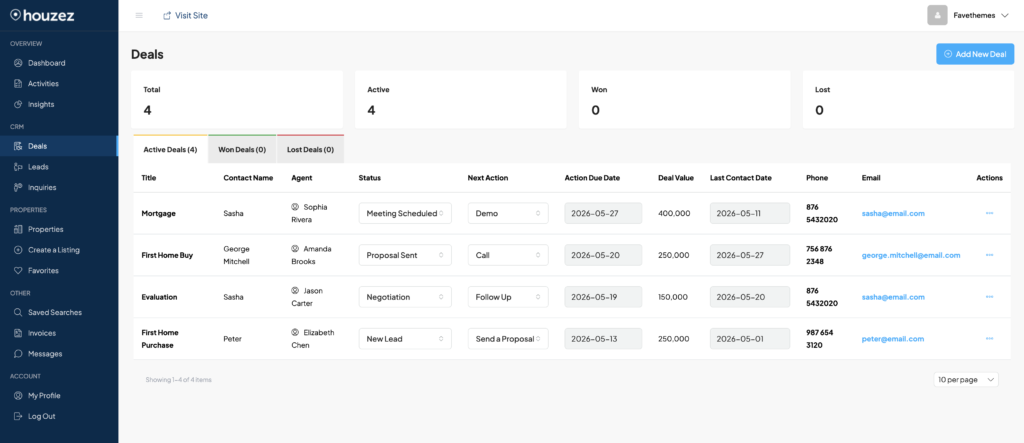
To create a new deal:
- Go to CRM → Deals
- Click “Add New Deal” in the top right
- Fill in the form: Group (Active Deals), Title, Contact Name, Agent, Deal Value
- Click Save
Once created, the deal appears in the Deals list with the following columns:
- Title and Contact Name
- Assigned Agent
- Status (New Lead, Contacted, Viewing Scheduled, etc.)
- Next Action (Send a Proposal, Follow Up, etc.)
- Action Due Date
- Deal Value
- Last Contact Date
- Phone and Email
Deals are organized into three tabs: Active Deals, Won Deals, and Lost Deals. You can update the status and next action directly from the list view using the inline dropdowns — no need to open each deal individually.
The Deal Value field is important for reporting. As you close more deals, you can track total revenue generated through your Houzez site — useful data if you’re building sites for clients and want to show ROI.
Step 7 — Analyze Listing Performance with Insights
The Insights section gives you traffic analytics for your property listings — not for the whole website, but specifically for how many times your listings are being viewed.
Metrics available in Insights:
- Views: Total page views for all listings over the last 24 hours, 7 days, and 30 days
- Unique Views: Unique visitor views for the same time periods
- Visits chart: A time-based graph showing visits vs. unique visits over the selected period
You can filter Insights by specific listing using the “All Listings” dropdown in the top right — so you can check which property is getting the most attention at any given time.
This data helps you understand which listings are generating interest and which ones might need better photos, a price adjustment, or more promotion.
Houzez CRM vs External CRM Tools: Real Comparison
| Feature | Houzez CRM | HubSpot Free | Follow Up Boss |
| Monthly cost | $0 (plugin included) | $0 (limited) | $69+/month |
| WordPress integration | Native — no setup | Plugin/API required | Zapier/webhook |
| Auto lead capture from listings | Yes — automatic | Manual import | Manual import |
| Real-time activity feed | Yes | No | Yes |
| Separate agent dashboard | Yes (front-end) | No | Yes |
| Buyer search inquiries tracking | Yes (with matching) | No | No |
| Deal pipeline (Won/Lost) | Yes | Basic | Yes |
| Listing analytics (Insights) | Yes (built-in) | No | No |
| Lead import/export CSV | Yes | Yes | Yes |
For most agencies and property portals, the Houzez CRM covers everything you need day to day. External CRMs make sense only if you need advanced marketing automation or are managing thousands of leads per month.
Common Mistakes to Avoid
- Skipping the plugin install: The CRM is not active by default. Without the Houzez CRM plugin installed and activated, none of this functionality exists. It’s the first thing to check if a client says “the CRM isn’t working.”
- Confusing Leads and Inquiries: Leads are people. Inquiries are search criteria submitted by those people. One person can have multiple inquiries. Use Leads to manage contacts and Inquiries to understand what they’re looking for.
- Not using the Deals section: Many users only look at Leads and ignore Deals. The Deals section is where you track real pipeline value — skip it and you have no visibility into revenue.
- Ignoring Matching Listings in Inquiries: This feature automatically cross-references buyer criteria against your inventory. Check it regularly — it tells you both what to sell and what listings you’re missing.
- Using third-party forms on listing pages: If you replace the native Houzez contact form with Contact Form 7 or WPForms, submissions won’t feed into the CRM automatically. Stick to the native Houzez form widget on property pages.
Final Thoughts
A real estate CRM in WordPress doesn’t have to mean complex integrations, monthly fees, or a steep learning curve. With Houzez, the CRM is a single plugin install away — and once it’s running, you get a complete lead management system with a dedicated front-end dashboard for your team.
The combination of real-time Activities, detailed Lead profiles, buyer Inquiries with matching listings, a Deal pipeline, and Insights analytics makes Houzez one of the most complete WordPress themes for serious real estate operations.
If you’re building real estate websites for clients, walk them through this CRM setup as part of your handoff. A site that captures, organizes, and tracks leads automatically is worth significantly more than a static property listing page — and it’s a strong reason to choose Houzez over any SaaS alternative.